Bug Watch: Why Did CAN-FD Adapter Go Silent After a USB Reconnect?
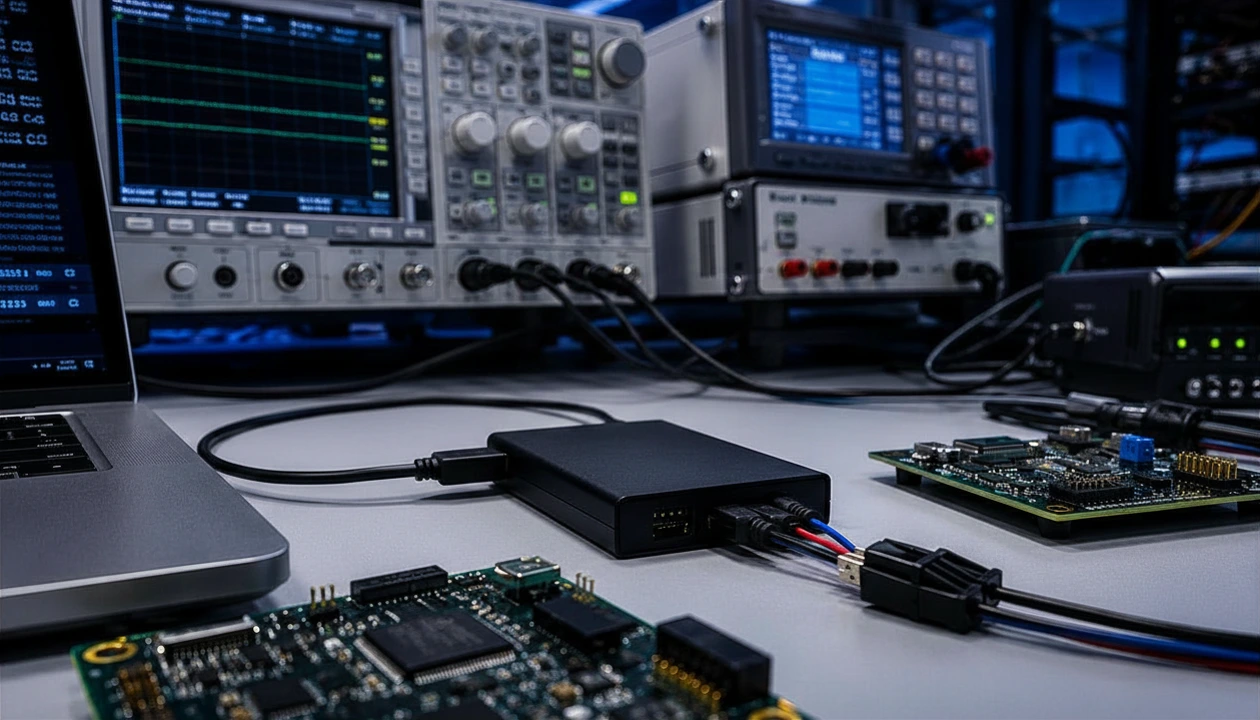
In the course of working on the Client’s test automation project, our team encountered a subtle but disruptive behavior in the USB CAN FD Adapter that would silently fail after a USB reconnect, with no visible error to point to.
The issue was only surfaced under a specific hardware configuration, making it easy to overlook in routine testing. Tracing it back led us to a missed cleanup in the adapter’s firmware, which is small in code, but significant in impact. In this article, lets dive deeper into the observations, how the root cause was identified, and the fix we delivered for this issue.
Tool Overview
The USB CAN FD adapter is a versatile tool that enables seamless communication between a PC and Controller Area Network (CAN), i.e, a communication system used in vehicles/machines to enable ECUs (Electronic Control Units) to communicate with each other. This adapter supporting both Classical CAN and CAN FD (Flexible Data-rate) protocols. It connects to a PC via a USB interface and acts as a bridge, enabling the PC to send and receive CAN / CAN FD messages.
Problem Description
The issue occurs only in a specific setup, that is shown in the following diagram. Here the USB CAN FD Adapter is connected to the test PC through an active USB Hub.
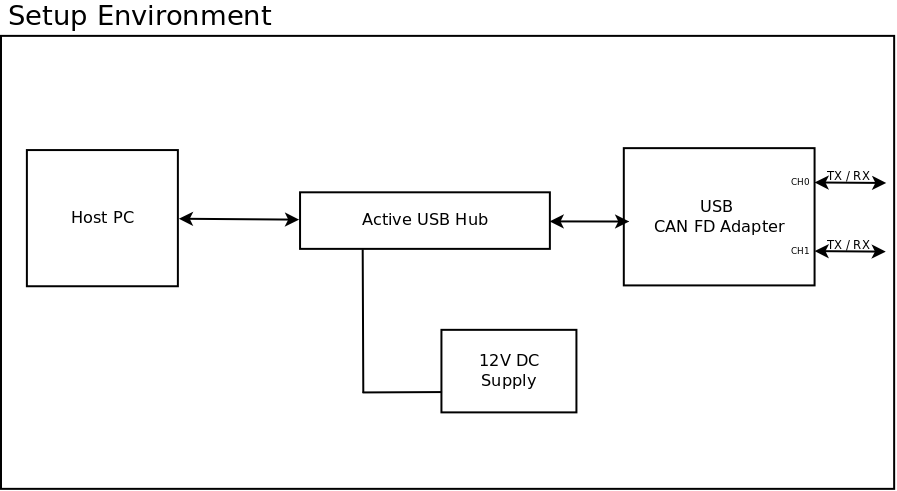
The issue is triggered when the USB hub is disconnected and then reconnected to the host PC. The observation is that after the reconnection of the USB hub to the host PC, the USB CAN FD Adapter fails to transmit CAN messages.
When the USB CAN FD Adapter is first plugged into the PC through the active USB hub, the device operates normally. Both transmission (Tx) and reception (Rx) of CAN messages function as expected. However, if the active USB hub is unplugged from the host PC and then plugged back in while the hub itself remains powered, the USB CAN FD Adapter loses its ability to transmit CAN messages. Reception continues to work correctly, but transmission becomes completely non-functional after the reconnection.
Recovery Procedure
The only way to restore full functionality is to power-cycle the CAN FD Adapter device. This can be done by disconnecting the device and reconnecting it, which reinitializes the hardware and restores normal CAN Tx operation.
CAN RX Overview
This section describes what happens when a CAN frame is received from the network, under normal circumstances. The following components are involved in the the reception of CAN message from the CAN network.
-
CAN Driver
-
GS USB Driver
-
USB Driver
CAN driver is responsible for handling the CAN controller and receiving CAN frame from the CAN network.
GS USB is an open-source communication protocol for USB based CAN controller device. The GS USB Driver is responsible for implementing the GS USB protocol / interface. USB driver is responsible for handling the USB controller and transmitting the CAN frames to the host PC.
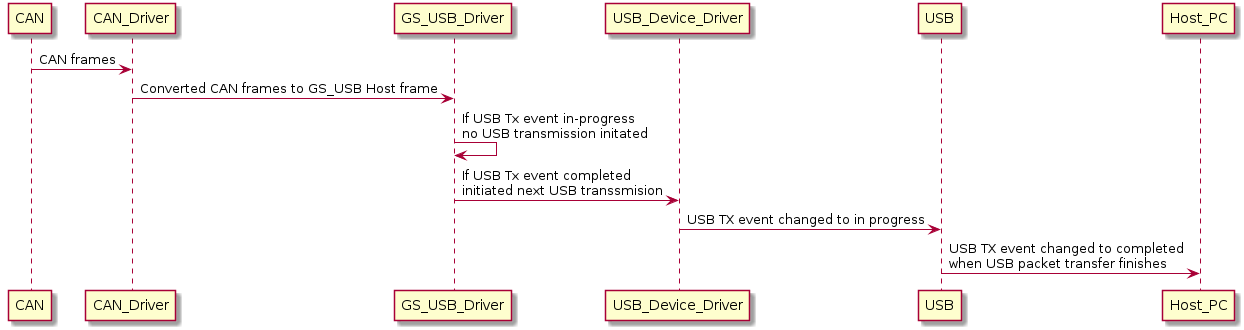
When the USB CAN FD Adapter receives a CAN packet from the network, the packet is added to the CAN RX queue by the GS USB Driver. At this point, the GS USB Driver has a pending packet in the queue that needs to be transmitted on the USB interface. The packet is dequeued, and the GS USB Driver checks the USB TX event state is "in-progress". If not, the GS USB Driver initiates the USB transmission. When the GS USB Driver starts the USB transmission, the USB TX event state is updated to "in-progress". Once the TX is complete, the USB Driver notifies the GS USB Driver of the completion, and the GS USB driver updates the state to "completed".
Root Cause Analysis
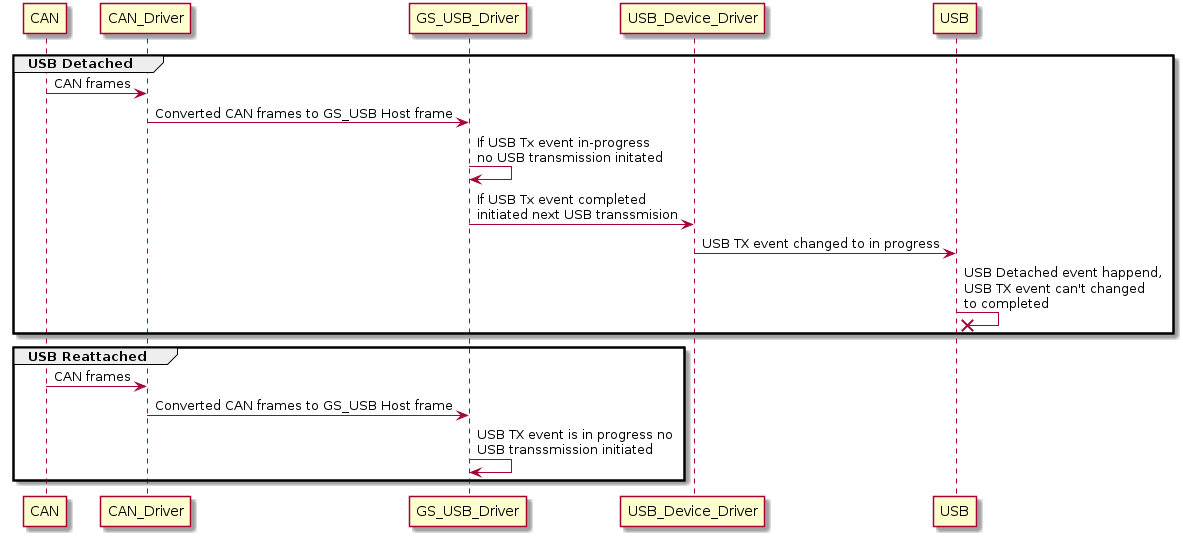
When a CAN frame is received and the active hub has been removed from the host, the CAN frame is submitted to the USB device driver for transmission. But since the USB interface is disconnected from the host, the USB device driver drops the packet, and the USB TX event state within the GS USB Driver remains in "in-progress".
When the active hub is reconnected to the host, the USB CAN FD Adapter re-enumerates on the USB bus. At this time, if any CAN frame is received by the adapter, it is added to the CAN RX queue. The GS USB Driver then attempts to send the packet to the host. However, the USB TX event remains in the "in-progress" state due to the previously failed transmission. Because of this stale state, the GS USB Driver always assumes that the USB TX event is busy, so no packets are transmitted after the USB re-enumeration.
Solution: Restoring CAN RX
The root cause of the reception lockup is that the USB TX event remains in the in-progress state when the USB cable is unplugged, and this state never returns to completed. As a result, the application logic blocks all subsequent USB transmissions, even after the device re-enumerates.
To prevent this scenario, the firmware must ensure that the USB TX state is properly reset whenever the USB connection is lost.
A reliable and low-impact solution is to reset the USB TX event to completed whenever a USB attach event occurs. This ensures that the device does not incorrectly assume a USB transfer is still in progress after the host has been reconnected.
This reset should be performed in the GS USB Driver layer and triggered by the USB Bus Reset event.
Conclusion
This issue was not caught by our test suites because we did not consider the scenario in which the USB CAN FD Adapter can be powered but is not connected to a host. This scenario is referred to as the "Powered, Detached State". Although this is not a common scenario, it is still a possibility and needs to be handled properly by the device. We have now included test cases for this usage scenario as well, increasing our test coverage.
Every embedded system presents unique engineering challenges. Whether you’re diagnosing elusive protocol issues, building automated test frameworks, or improving product quality, our engineers can work alongside your team to deliver practical solutions. Contact sales@zilogic.com to start the conversation.